
Original mix
The configured passage before separation.
Source mix12s sample
Use Extend for an eligible saved Sunoi song, Vocal Remover for Vocals plus Instrumental, or Stem Splitter for six separate output groups.
Audition the actual configured files
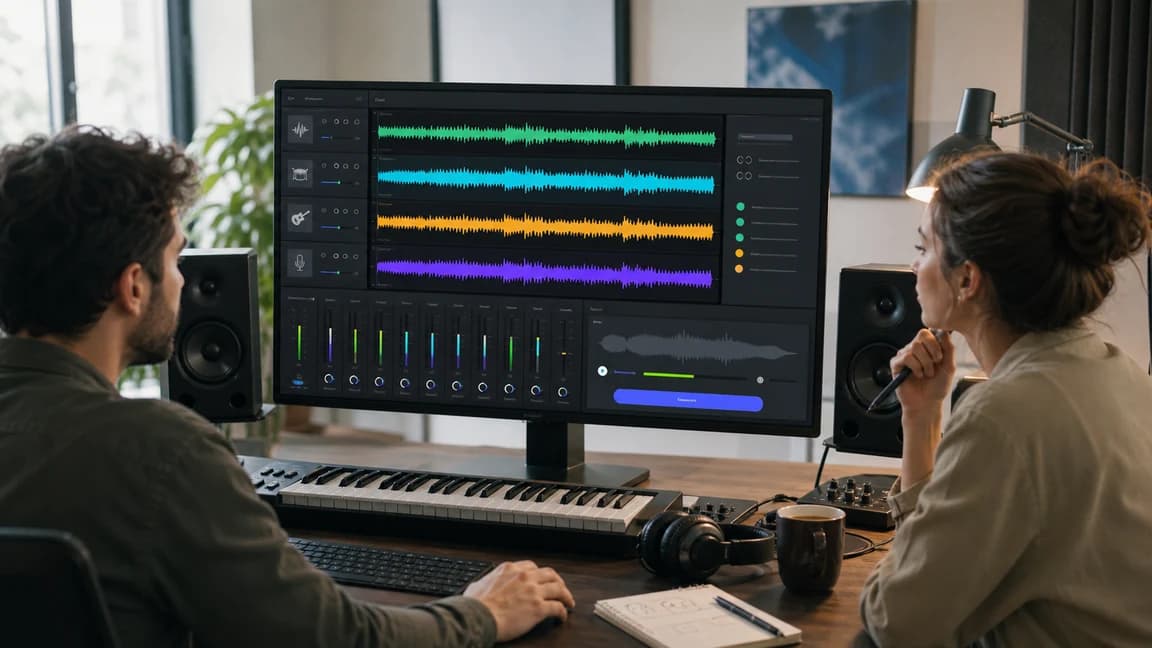
This player uses Sunoi's configured Stem Splitter sample. The original mix and six named outputs share the same passage. The buttons use existing evidence files, not general song demos.
Original mix
The configured passage before separation.
Vocals
Audition the estimated vocal material.
Drums
Audition the estimated drum material.
Bass
Audition the estimated bass material.
Other
Audition material grouped as Other.
Guitar
Audition the estimated guitar material.
Piano
Audition the estimated piano material.
It proves the configured original and six separated files exist and can be auditioned in Sunoi's shared player. Each uses the same 12-second passage, so you can hear which material appears in each named group.
These are estimates from a mixed recording, not the original DAW source multitracks. They do not establish perfect, artifact-free, or universal results. A split may contain bleed, transient smearing, missing material, or a wrong label. Review your own output before using it.
Use the narrowest workflow that returns the needed file. Its dedicated page lists current input and plan requirements.
An eligible saved Sunoi song can continue when its arrangement needs more development. Extend is not an upload-any-audio separation path.
Current output: An additional continuation for the eligible saved song
Open AI Song ExtenderA two-part result suits rehearsal, karaoke preparation, or an alternate edit that does not need six groups.
Current output: Vocals and Instrumental
Open Vocal RemoverSix groups offer more control for remixing, practice, or analysis. The source must be authorized, and every separated file needs review.
Current output: Vocals, Drums, Bass, Other, Guitar, and Piano
Open Stem SplitterEditing features and plan access change over time. This comparison links the current source for continuation, vocal isolation, and stem separation rather than treating all editing as one capability.
Facts checked:
Published by Sunoi. Suno facts link to Suno's official Help Center. Features, plan access, credit costs, and output options can change.
| Sunoi vs Suno: compare current post-generation workflows | Sunoi | Suno |
|---|---|---|
| Extend the arrangement | Sunoi provides a dedicated AI Song Extender for continuing eligible saved Sunoi songs with an additional arrangement direction. Sources: Sunoi AI Song Extender | Suno's Song Editor documents song extension alongside section replacement, lyric editing, cropping, and fades. Sources: Suno Song Editor |
| Remove a vocal or isolate one part | Sunoi separates the focused Vocal Remover workflow from the broader Stem Splitter so creators can choose a two-part result or a six-group split. Sources: Sunoi Vocal Remover, Sunoi Stem Splitter | Suno documents Split from Mix for extracting a selected instrument or vocal plus the complementary mix on an eligible paid plan. Sources: Suno stem separation |
| Full stem output | Sunoi's current Stem Splitter produces Vocals, Drums, Bass, Other, Guitar, and Piano groups from the submitted mix. Sources: Sunoi Stem Splitter | Suno documents Auto Split for up to 12 detected stems. Its separate Advanced Split mode offers a choice of nearly 100 instruments to Premier subscribers; all stem-separation modes require a paid plan. Sources: Suno stem separation |
Create → Choose → Check
The accepted source and required output determine the smallest suitable tool.
Create a SongA new track can begin here. Extend requires an eligible saved Sunoi song, while separation begins with authorized audio in the relevant upload flow.
More arrangement points to Extend. Vocals plus Instrumental points to Vocal Remover; the six listed groups point to Stem Splitter.
Check extension transitions and every separated file. Bleed, artifacts, missing material, or a wrong label may make an output unsuitable.
Editing limits stay visible
Separation can contain bleed, artifacts, missing elements, or imperfect labels. Review the output; it is not a guaranteed studio multitrack reconstruction.
Sunoi is independent. It is not affiliated with, endorsed by, or sponsored by Suno. Suno belongs to its respective trademark owner.
You are responsible for uploaded source material. Downloads and commercial use follow the active plan and License Agreement.
Review the License AgreementYes. Send authorized audio to Stem Splitter for Vocals, Drums, Bass, Other, Guitar, and Piano.
Vocal Remover returns Vocals and Instrumental. Stem Splitter returns six groups for more detailed control.
No. Extend is for eligible saved Sunoi songs. Its source selector shows whether a track is available.
No. Separation estimates parts from a mix and can contain bleed, artifacts, missing elements, or imperfect labels.
Create a song or open the dedicated editor for an existing source.
Check input eligibility, separation quality, source rights, and the active plan before use.