
Original mix
The same 12-second song excerpt before separation.
Upload audio from your device or choose a song from your library. Processing requires a paid plan. Creates exactly six tracks: Vocals, Drums, Bass, Other, Guitar, and Piano.
Choose a song from your Sunoi library to generate stems.
Post-generation stem editing
Move from a finished generated song to separated parts. Instead of treating the mix as one locked file, inspect vocals, rhythm, instruments, and ambience as their own layers. After separation, use the stems like a working mix: focus on one part, mute a layer, compare balance, or export files for the next production step.
The same 12-second song excerpt before separation.
Main vocal phrasing isolated from the full mix.
Kick, snare, and groove separated for rhythm edits.
The low-end line exposed for remixing and mix balance.
Guitar accents separated from the arrangement.
Chord movement and piano detail isolated for review.
Remaining textures and harmonic layers from the same excerpt.
Before you split
Stem separation works from uploaded audio or saved Sunoi songs and returns useful parts only when those sounds exist in the mix.
Upload a supported audio file or choose a completed song from your Sunoi library. Stem Splitter is designed for source audio that already exists.
The run returns the available stem pack for that song, rather than a guaranteed list of every instrument category.
If the original track has no clear bass, drums, vocal, or texture layer, the related stem may be quiet or less useful.
Library song workflow
Use an uploaded audio file or a generated song from your library, run the split, then review the parts that matter for your next edit.
Upload a local audio file or pick the Sunoi track you want to inspect, remix, or prepare for deeper production.
Create a stem pack that targets vocal, rhythm, instrument, and ambience families.
Open My Songs after processing, listen to the finished stem files, and move useful layers into your next editing workflow.
Choose the right split
If you only need one vocal track and one instrumental backing track, Vocal Remover is usually the faster fit.
Separate the full mix into Vocals, Drums, Bass, Other, Guitar, and Piano stems Separate vocals from the instrumental backing
Creates exactly six tracks: Vocals, Drums, Bass, Other, Guitar, and Piano. 2 tracks: vocals and instrumental
Remixing, mix review, learning, and detailed production prep Karaoke, covers, and quick instrumental versions
More granular control over vocals, rhythm, instruments, and ambience Simple two-track control
Post-generation stem control
Stem Splitter comes after AI Music Generator or AI Song Extender: keep the finished mix as the source, then open the individual parts when the arrangement is ready for deeper editing.
Start from one saved song and review the original audio beside separated Vocals, Drums, Bass, Other, Guitar, and Piano files when those parts exist in the mix.
Split a saved songUse separated layers to hear what is carrying the song, isolate a rhythm or hook, rebalance dense sections, or decide whether Vocal Remover is enough for a simpler two-track job.
Try the stem demoKeep the generated song, the extended version, and the stem pack connected in My Songs so useful layers can move into remix drafts, rehearsal mixes, edits, or DAW sessions.
Open My SongsPractical production uses
Separated stems are useful whenever the final song is close, but the mix needs more focused review or creative reuse.
Make background versions, loopable moments, or cleaner cue edits from music already in your library.
Start from isolated hooks, bass, drums, or textures and build a new version around the strongest element.
Listen to vocals, rhythm, and harmony separately to understand what makes the arrangement work.
Sunoi workflow
Use Stem Splitter as one step in a broader AI music suite: remove vocals, generate instrumental ideas, or create a stronger source song first.
Use Vocal Remover when the job is a faster two-track split instead of full multi-part separation.
Open Vocal RemoverUse Text to Music to create background music and instrumental foundations before deeper editing.
Open Text to MusicStart in AI Music Generator when you still need the original vocals, arrangement, and full track before splitting stems.
Open AI Music GeneratorAn AI stem splitter analyzes a full mix and separates it into audio parts such as vocals, drums, bass, instruments, and ambience. Sunoi can use uploaded audio or songs already available in your library.
Vocal Remover is focused on two outputs: Vocals and Instrumental. Stem Splitter targets a broader set of stem families: Vocals, Drums, Bass, Other, Guitar, and Piano.
A separation can return Vocals, Drums, Bass, Other, Guitar, and Piano stems for uploaded audio or the selected saved song. The exact useful audio depends on which parts are present in the original mix.
A stem file only contains meaningful audio when that kind of sound exists in the source song. If the track has no clear bass, vocal, drum, or texture layer, the related file may be silent, quiet, or less useful.
Yes. Exported stems can be moved into common DAW and editing workflows for remixing, practice mixes, arrangement review, and additional production work.
No. The split runs automatically from uploaded audio or a selected library song, while the separated files give more advanced users room for detailed editing.
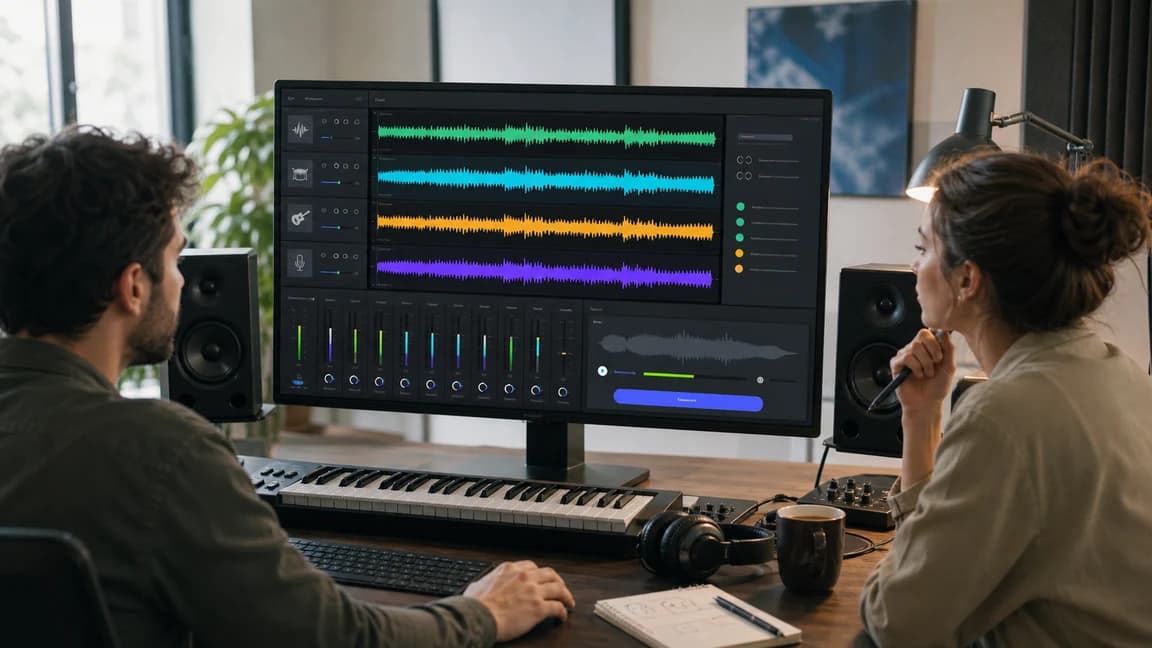
Upload an audio file or choose a completed source song from your library, generate separated parts, and open My Songs when processing finishes to continue editing the mix. Start with uploaded audio or a saved Sunoi song